Nodey’s suite is compatible with our other business line OKO. OKO is a suite of apps and plugins that operate across game engines, connected to a comprehensive set of cloud services, accessible across many devices.
Essentially what Squarespace and WordPress are for websites…OKO is to social 3D spaces. To learn more about OKO please visit: https://docs.oko.live/oko/?l=en
3D Asset Generation in Nodey
Nodey offers two different methods to generate a 3D mesh from an image.
-
Meshy.
-
Tripo.
The resulting output model format is a GLB file.
Meshy Image to 3D
-
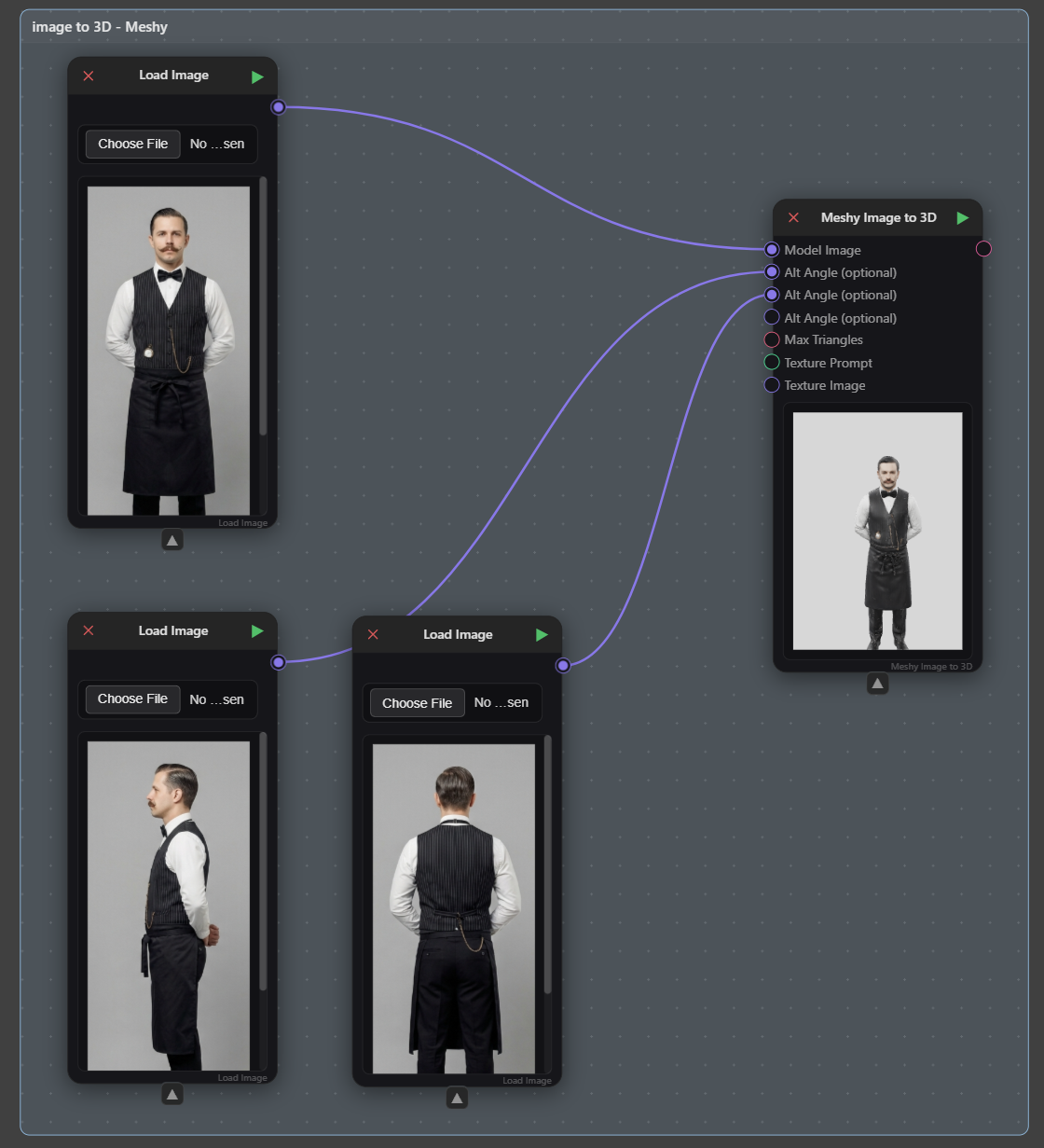
Connect one or more reference images to the Meshy Image to 3D node. The more images provided to the node, the more accurate the 3D model result will be.
-
The Max Triangles input can be left blank in order to allow AI to decide what is the optimal triangles to best describe the resulting 3D model.
-
The two Texture inputs allows the user to specify an override to the materials on the resulting 3D model.
-
Click on the window preview on the Meshy node to orbit and examine the model. If satisfied, click on Download the top to save the GLB model.
-
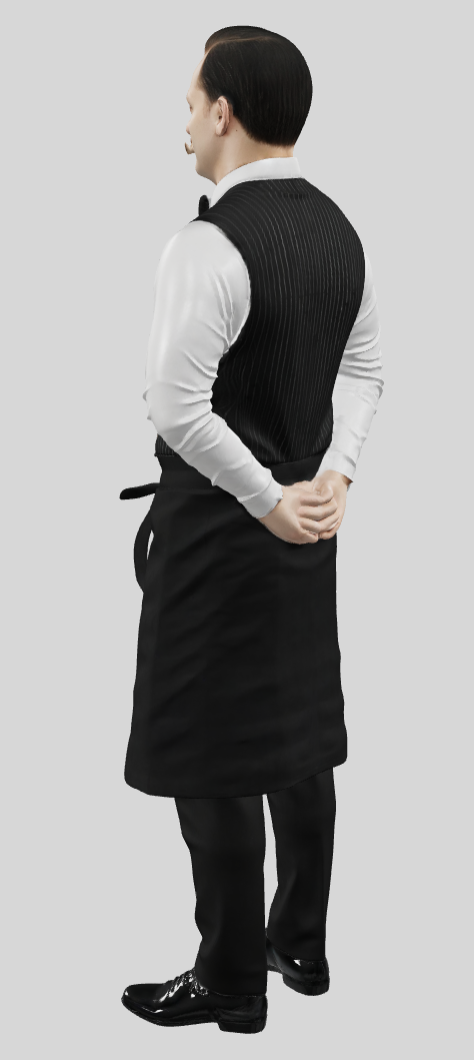
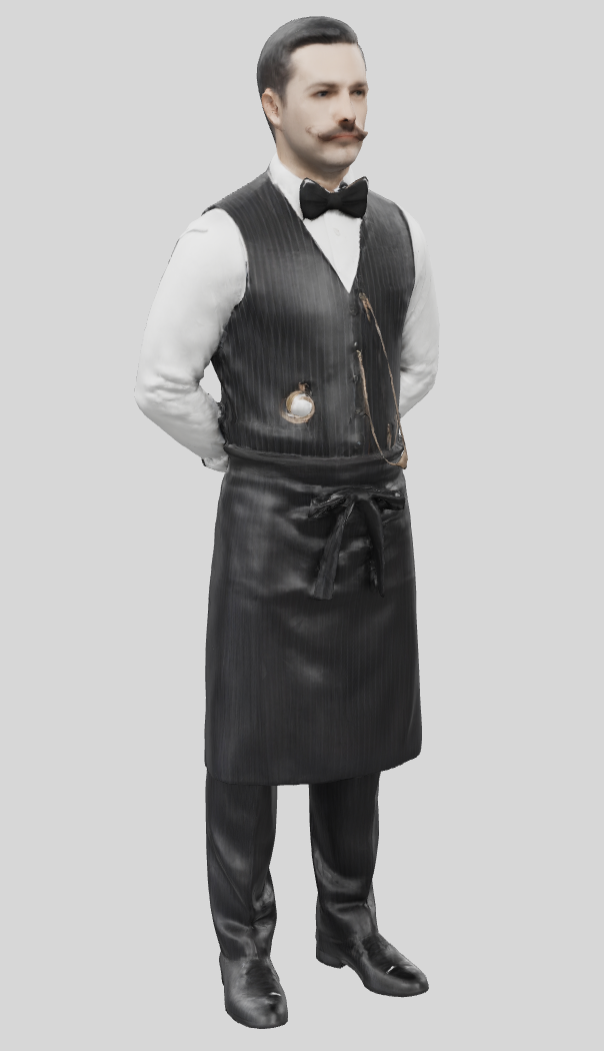
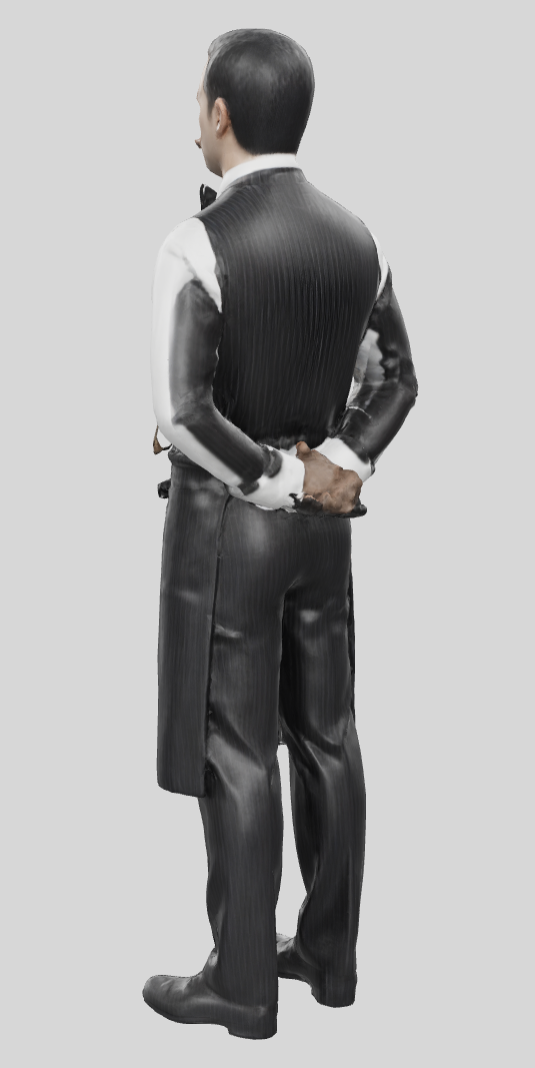
The results from Meshy can be a bit inconsistent and prone to strange errors on the model, as seen below on the back of the arms.
Tripo Image to 3D
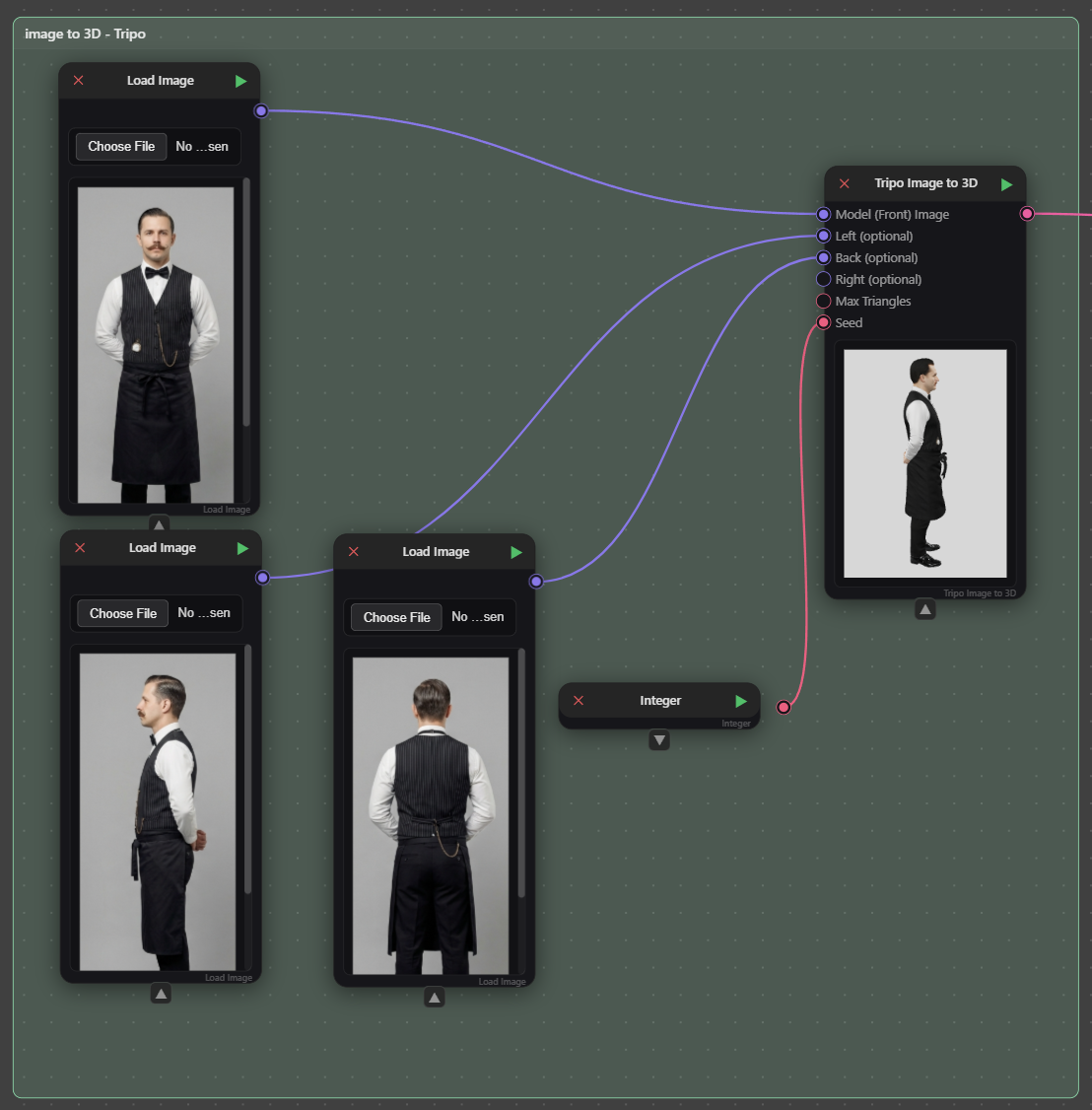
Similar to the Meshy Image to 3D node, the Tripo node uses a different AI calculation to generate a 3D model from input images. Unlike Meshy, it doesn’t not support any material overrides but it does have a Seed input.
-
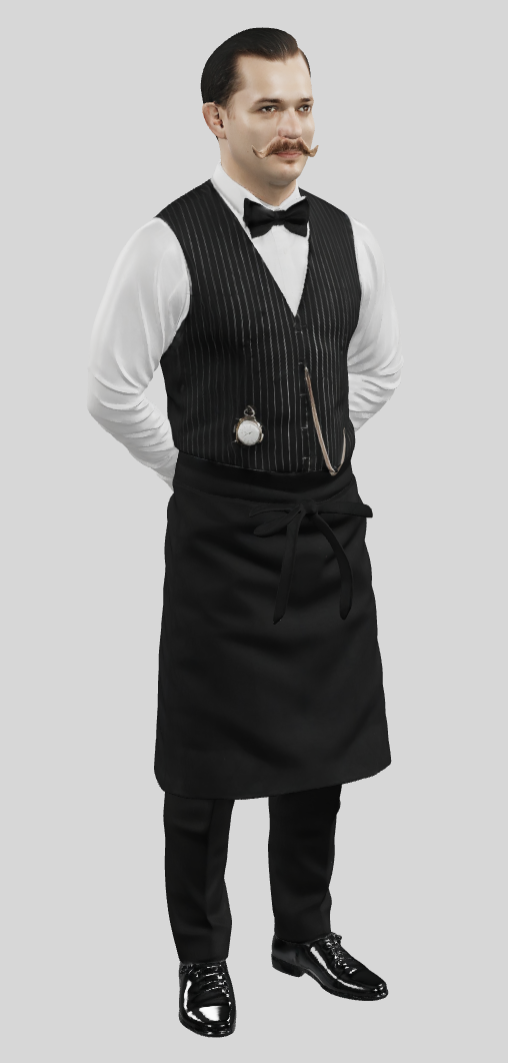
Results from Tripo tends to be generally more accurate, compared to Meshy. In addition, the roughness values on the model tend to be more accurate to real world materials